Author Archives: Jamie

Unknown's avatar

About Jamie

I am a recent graduate of Bridgewater State University, in Bridgewater, MA, where I studyied Management with a concentration in Information Systems Management. Previously, I was a Computer Science major at the University of Massachusetts - Boston. Some of my interests include computers, technology, programming, education, business, biology, as well as learning Spanish.

Favorite Apps 2016

With 2016 drawing to a close in just several hours, it’s time, once again, for the annual TechnicalCafe.com Favorite App list, showcasing some of my favorite apps that I’ve used over the past year, and explaining why they were chosen.

The apps listed below span a variety of categories and uses, and while not all of them were created or released in 2016, they were some of the apps that I frequently during the course of the last year or so.

In no particular order, here is the TechnicalCafe favorite apps list for 2016:

Calendars 5 – $6.99 (iOS)
calendars5-1

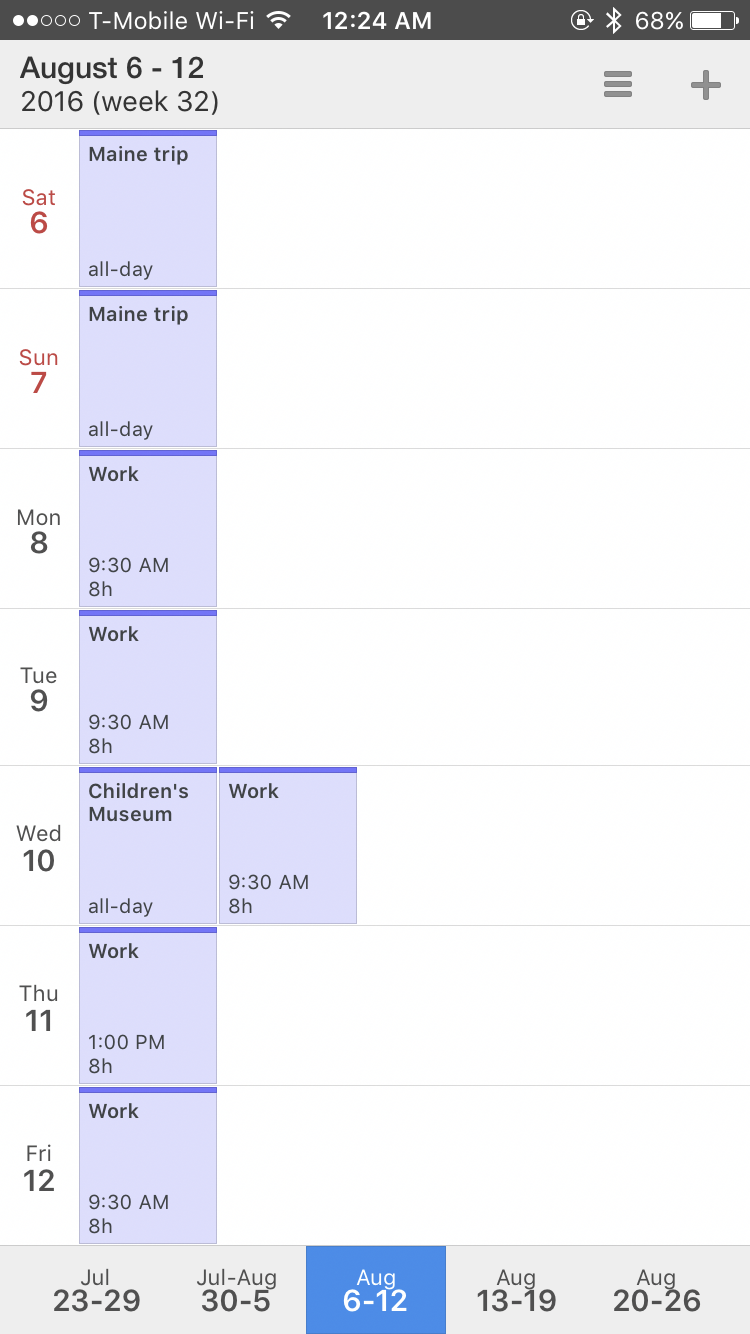
Calendars 5, by Readdle, is a calendar app that can be synced with both iOS and Google Calendar and can also be used for managing your tasks with the app’s built in task manager (that also syncs with iOS Reminders and Google Tasks).

One of the great features about Calendars 5 is the natural language processing that is built into the app, which makes it easy to enter an appointment into one’s calendar. For example, one can add an event to their calendar by entering something like ” Wednesday 9:30 AM – 10:30 Dentist Appointment”, which will create an event for the next Wednesday from 9:30 AM – 10:30 AM, making it easy to enter appointments and events in one’s calendar.

Calendars 5 also enables users to view events and tasks in several views, including “List”, “Day”, “Week”, and “Month” views, with the “Month” view being particularly nice, in my opinion, as you can see what you have going on for the month, like you would be able to with a traditional desk or wall calendar.

Google Calendar – Free (iOS | Android)
google-calendar-1

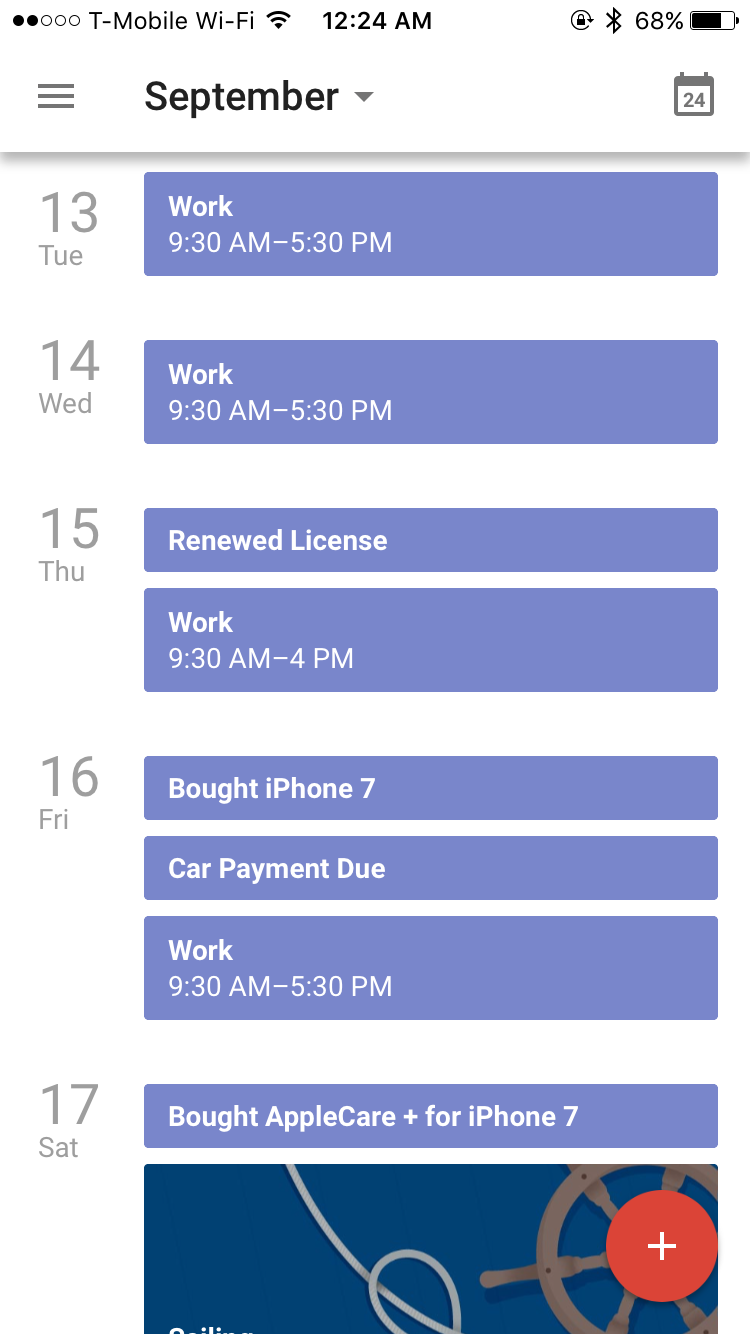
Google Calendar’s official iOS app, which launched last year, is another great app for viewing and managing your Google Calendar.

Like with Calendars 5, users can use natural language to enter events, using phrases like “Work 9:00 – 5:00 1/3/17”. And with several views, including “Schedule”, “Day”, “3 Day”, “Week”, and “Month” view, users can easily see what events are upcoming on their schedules.

Users can also use the Google Calendar app to add goals and reminders to their schedules, which can make it easier to try and get things done, while also keeping all of the aspects of one’s schedule in the same place.

Alien Blue – Free (Discontinued) (iOS | Android)

Alien Blue is an app for accessing Reddit, but has since been discontinued following the release of the new official Reddit app, available for iOS and Android.

Despite the fact that there’s a new official app for browing Reddit, I still find myself using Alien Blue quite frequently, given that I’m used to using the app and am familiar with many of its features.

Evernote – Free (iOS | Android)

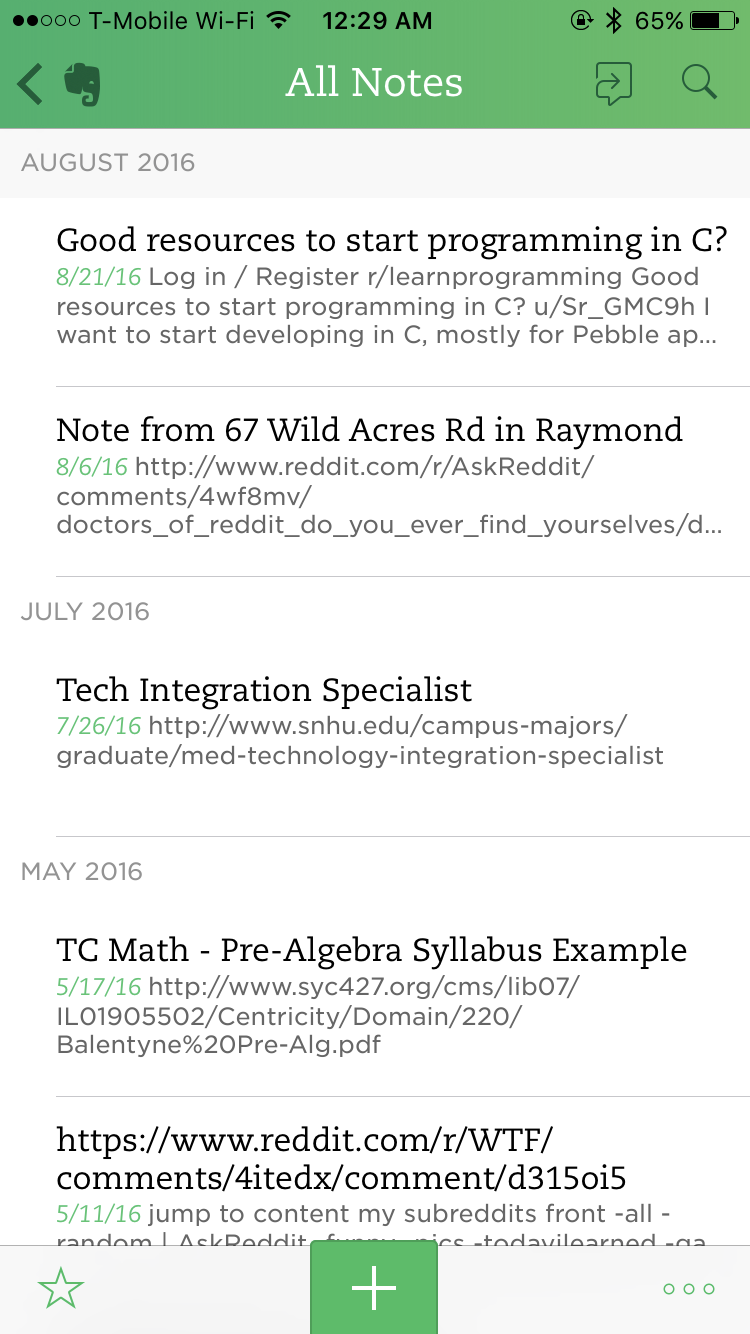
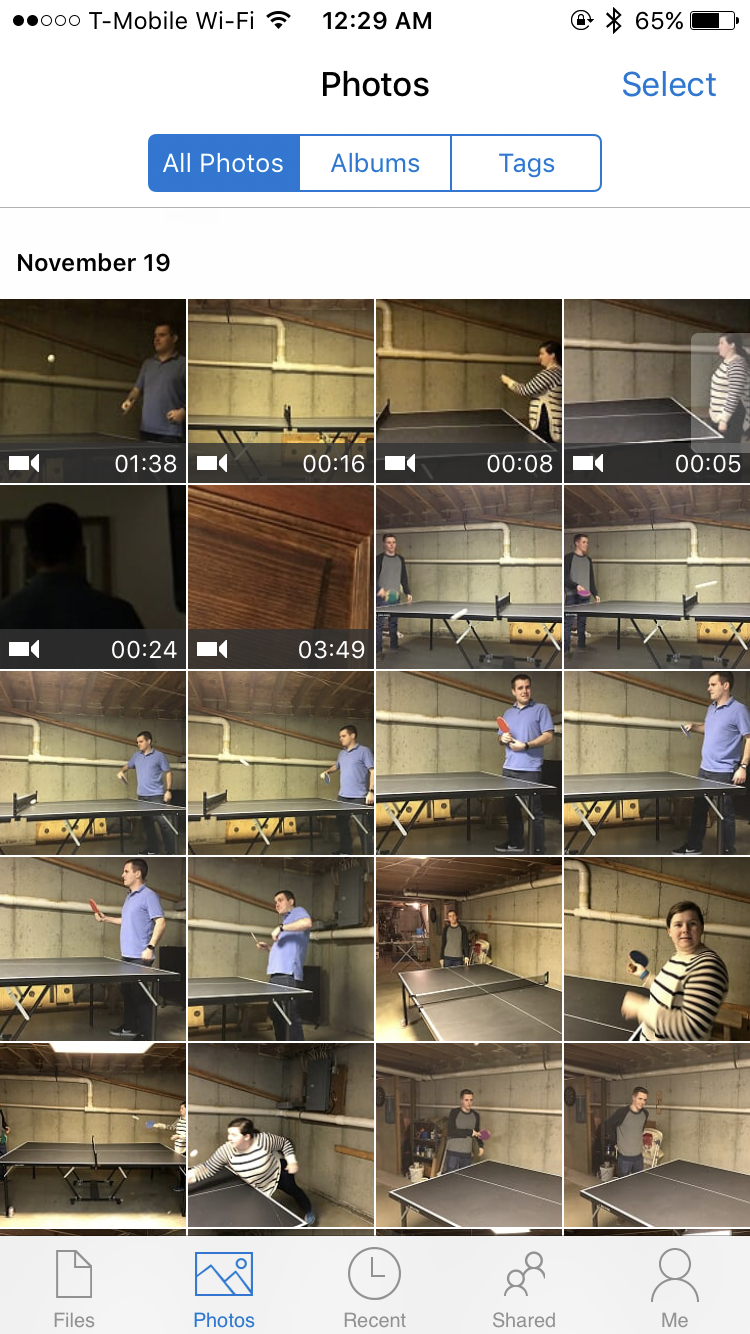
Evernote is an app that enables users to manage notes, to-do evernote-1lists, and more, with everything being synced across multiple devices, making it accessible both at your computer and on the go.
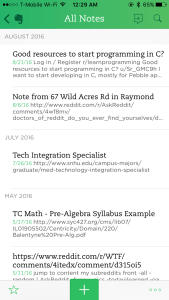
Users can collaborate on notes with other users, and can even share notes publicly, should they choose to do so. There’s also the option to chat with those who are working on notes with you, making it easy to dicuss and understand your notes and other items that are being worked on in collaboration with others.

Evernote also offers a paid version, which includes a variety of
upgrades, including the ability to use Evernote on more than two devices, increased upload limits, offline access to one’s notes, and more.

Personally, I use the free version of Evernote and am pretty happy with the service. In fact, Evernote has pretty much replaced the native “Notes” app on my iPhone, as I enjoy being able to take and sync notes across my devices, and also enjoy the desktop access to my notes (via the Evernote website or desktop application), in addition to being able to access my notes using the app.

Snapchat  – Free (iOS | Android)

Snapchat, by Snap, Inc.,  is a free app that enables users to send photo, video, and text messages to one another, with the caveat that the messages disappear once they’ve been opened. With a variety of filters that can be used to enhance one’s photos and videos, Snapchat offers users a fun way to communicate, beyond that of what traditional text messaging provides.

Personally, I use Snapchat almost daily and think it’s a lot of fun to be able to send messages back and forth with friends and family. It can be quite a bit of fun to experiment with the variety of filters and effects that are available within the app, and it can also be just as fun to see what my friends and family members come up with while using them.

Microsoft OneDrive – Free (iOS | Android)
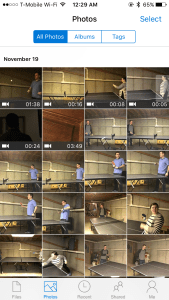
onedrive-1OneDrive, by Microsoft, is a free cloud-based storage solution that enables users to create and store documents in the cloud. In addition, users can upload photos, videos, and other files and documents and keep them synced across all of their devices.

The free plan offers users 5 GB of storage, with paid storage plans available, should users desire additional storage space. One of the best features about OneDrive is that users can set it to automatically back up photos from their phone’s camera rolls to the service, so that should something happen to their phone, their photos and videos will be stored in the cloud and can be downloaded and viewed again.

I’ve been using OneDrive for the past several years and have found it to be a great place to store photos and videos, and have recently upgraded to a paid plan so that I can continue to backup and store my ever-growing photo and video library online.

Mint – Free (iOS | Android)

Photo Dec 28, 12 40 12 AMMint, by Intuit, is a free service that enables users to keep track of their money and finances, including spending, income, budgets, and more.

With Mint, users can add multiple accounts, including checking, savings, credit cards, etc. and see how their money has been used and where it has been spent over various time periods, thanks to a variety of helpful metrics and graphs.

Users can also create and view budgets, with default budgets being provided, in order to better keep track of spending within certain categories.

Wunderlist – Free (iOS | Android)
wunderlist-2

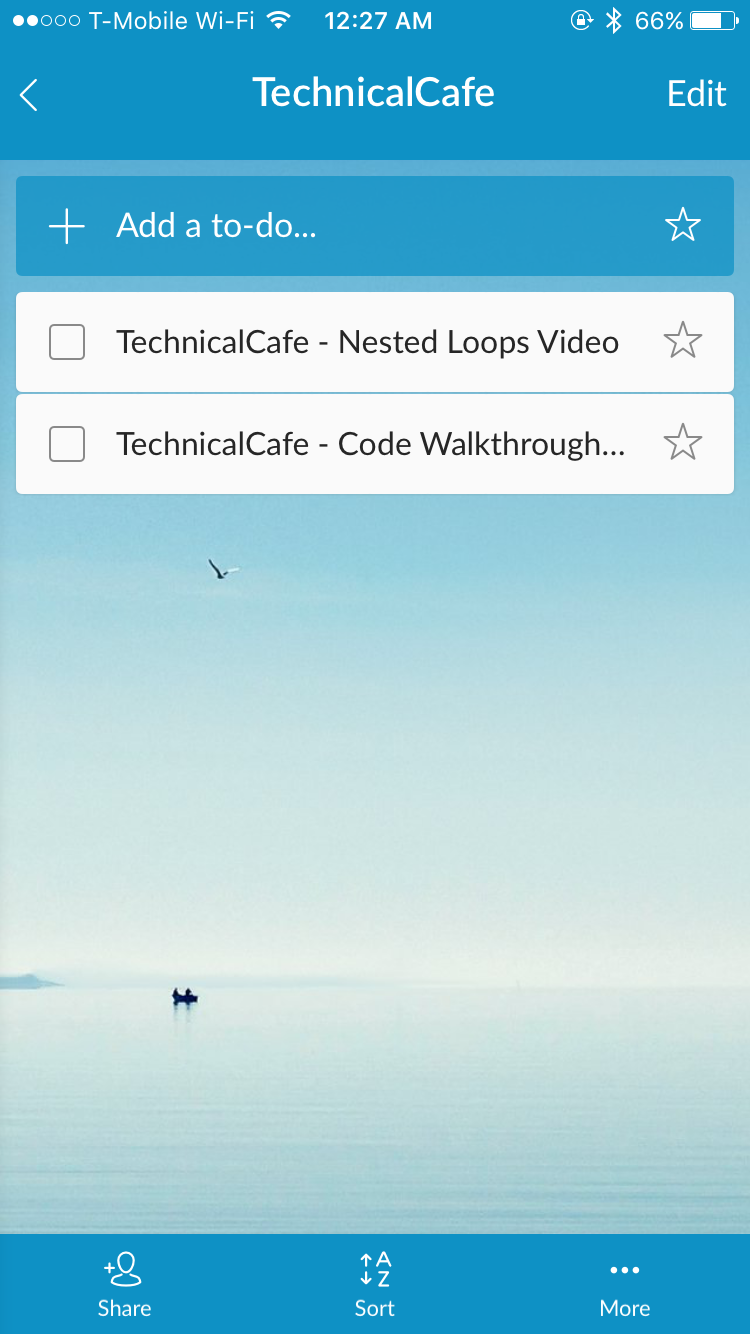
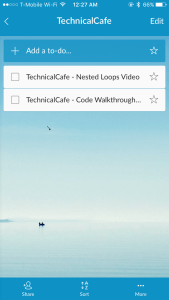
Wunderlist, a to-do and reminders app that was acquired by Microsoft last year, is on the list again, as it enables users to keep track of tasks and reminders across multiple devices, including desktop, mobile, tablet, and even on wearables, like the Apple Watch.

Like with the native iOS notes app, Wunderlist enables users the option to have multiple task lists and also enables users to set due dates, add notes, and even have nested tasks, if desired.

Wunderlist requires that users sign up for a free account, which can be used to sign into the service and view tasks on multiple devices. Users can share their lists with others, and can also invite others to view and modify their lists, as well.

1Password – Free (iOS | Android)
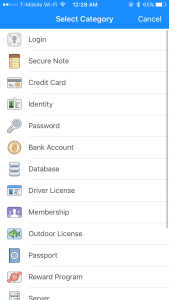
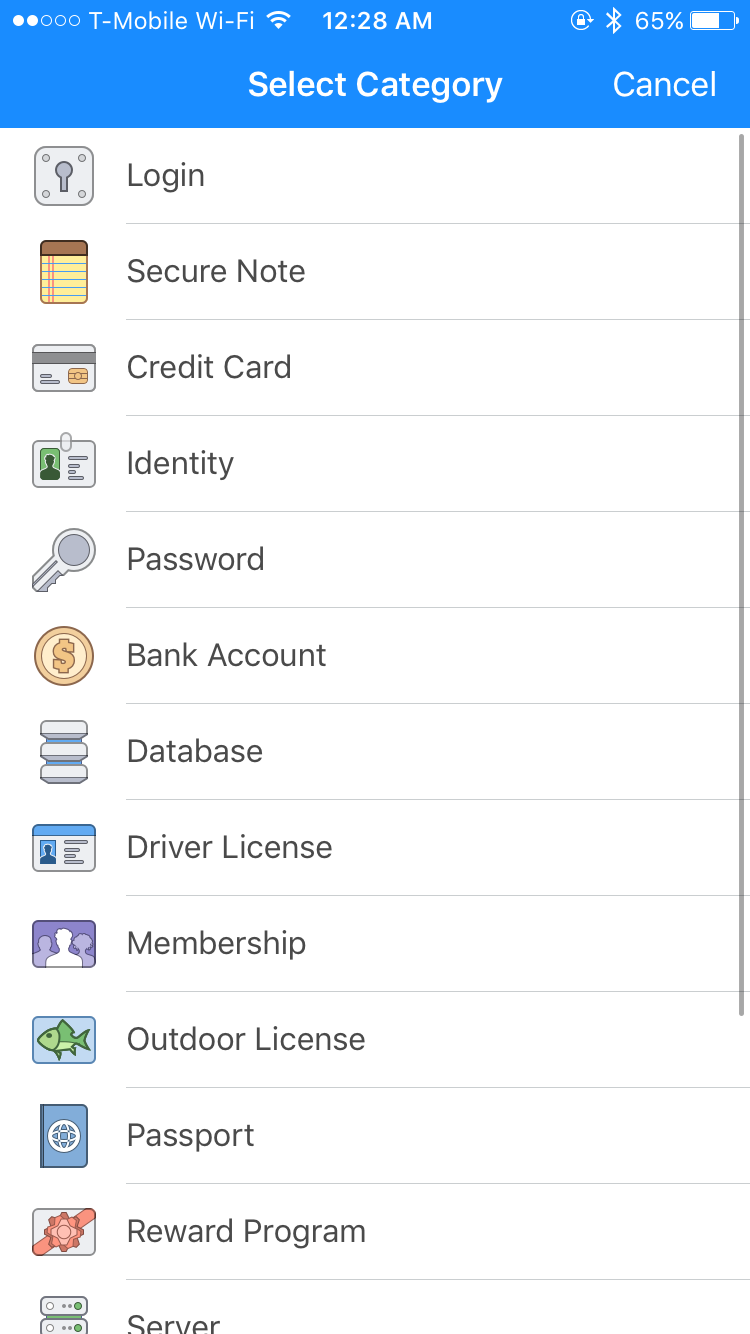
1password-3Given the increase in the amount of usernames and passwords that we must remember today, 1Password, by Agile Bits, is a great app to have, as it can help users to safely and securely store their passwords all in one place.

Protected by encryption that can only be unlocked by using a master password, all of a user’s passwords can be safely stored in 1Password, leaving the user to only have to remember their master password, which unlocks the app. If you’re thinking “what will happen if I lose my phone?”, 1Password also offers users the option to back up their credentials to one of several cloud-based services (iCloud, Dropbox, etc.), with the backup also being encrypted so that there is no need for anyone to worry about their passwords being seen by prying eyes.

Users can also store other data within 1Password, including secure notes and card numbers, among a variety of others. There’s also a paid pro version of 1Password that offers additional features, should users desire them.

I’ve been using 1Password for a while now, and find myself using it pretty frequently, especially when I’m trying to log into a service that I don’t regularly use. Given that the app is so helpful for remembering passwords, I purchased the pro version (via an in-app purchase), and am quite happy with the app overall.

Dark Sky – $3.99 (iOS)
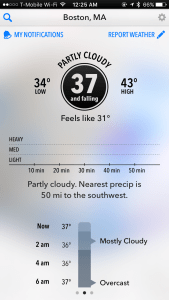
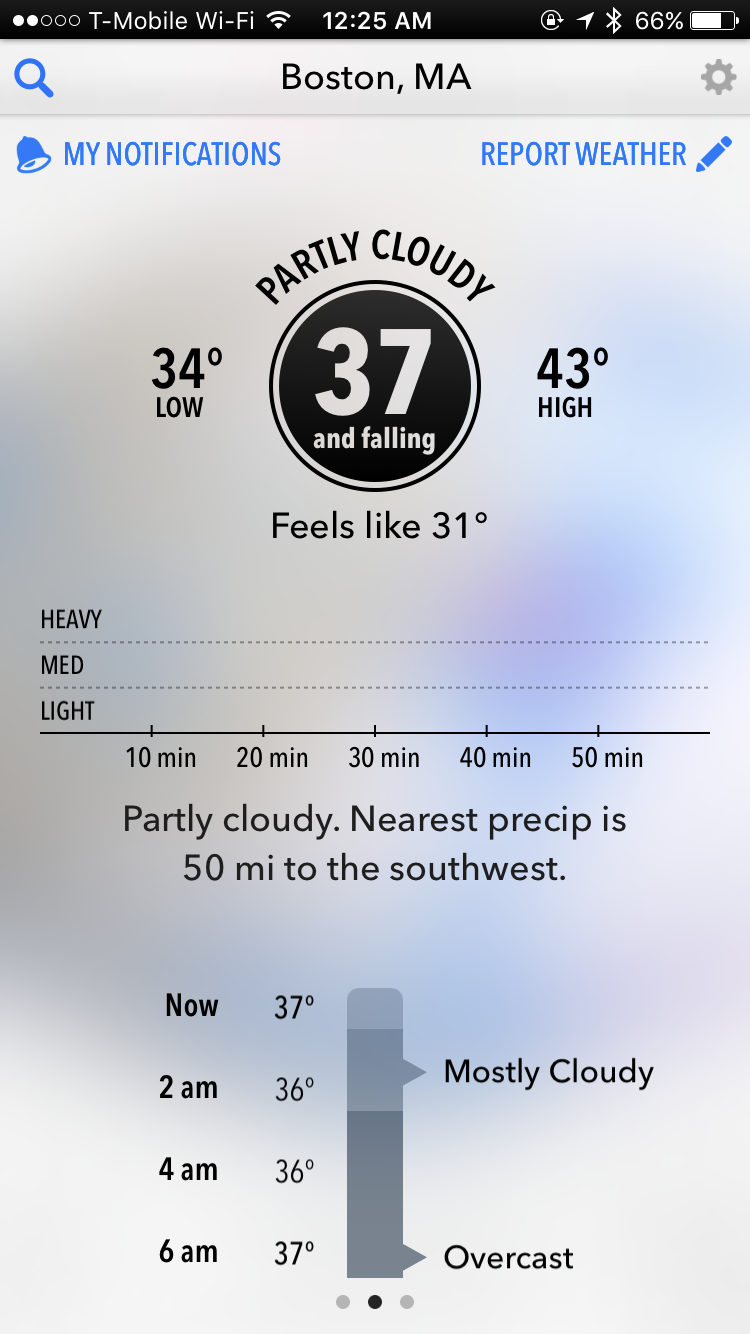
dark-sky-1Dark Sky is a weather app that offers a variety of useful information and features, above and beyond those offered by most standard weather apps.

In addition to providing temperature and precipitation information, Dark Sky also provides timelines as to when users can expect precipitation to begin or stop, as well as where the nearest precipitation is in relation to the user. Users can also see other information related to the weather forecast on a timeline, including temperature, wind speed, and more.

While Dark Sky has a pretty hefty price tag, as far as apps go, I think the purchase is definitely worth it if you’re looking for a robust weather app with a variety of useful and interesting features.

While the apps above were the ones that I ultimately decided to include in this post, there were several other apps that were also in consideration, which include: Reminders (native iOS app), Health (native iOS app), Activity (native iOS app), and Scanner Pro (by Readdle – iOS).

If you’re interested in what apps made the list in previous years, I invite you to check out the following links to see what apps were chosen in: 201520142013, 2011, and in 2010.

We hope everyone has a happy and healthy New Year and would like to thank everyone for visiting the TechnicalCafe.com blog and the TechnicalCafe YouTube channel and for taking the time to read, view, and comment on our content! See you in 2017!

Favorite Apps 2015

As 2015 draws to a close, it’s time for the annual TechnicalCafe “Favorite Apps” post, where I talk about some of the apps that I have been using over the past year or so and why they are considered my favorites.

In no particular order, here is a list of some of my favorite apps that I have used throughout the course of 2015:

Tweetbot 4 – $4.99 (iOS)

Screenshot of Tweetbot


TweetBot 4, by Tapbots, is the latest version of TweetBot and provides a great way to view, post, and manage tweets, with users being able to do so by using a variety of touch gestures, such as swiping to view a conversation, etc. Using the five buttons at the bottom of the interface, one can easily view tweets, manage conversations, interact with followers, and more, with two of these buttons being user-customizable!

Alien Blue – Free (iOS)

Screenshot of Alien Blue


Alien Blue, the official iOS Reddit app, is my go-to way of accessing Reddit using my iPhone. With Alien Blue, users can view and post Reddit threads, as well as comment on existing ones. Additionally, the app includes support for viewing images from within the app itself, making it easy to enjoy the Reddit experience all within one app. A built-in browser also makes it easy to view articles and what not that may be posted, making it easy to view Reddit posts, articles, images, videos, and more, without having to use more than one app.

Calendars 5 – $6.99 (iOS)

Screenshot of Calendars 5Screenshot of Calendars 5


Calendars 5, by Readdle, is a full-featured calendar app for iOS, which enables users to easily view and manage their schedules on the go. Calendars 5 supports syncing with Google Calendar, Outlook, Microsoft Exchange, Yahoo!, AoL, as well as other calendars.

Sunrise Calendar – Free (iOS | Android)

Photo Dec 28, 9 40 06 PM Screenshot of Sunrise Calendar


Sunrise Calendar, which was acquired by Microsoft earlier this year, is a great calendar app that can be used to keep track of one’s schedule, be it for school, work, or other events that users wish to keep track of. Sunrise offers two views of one’s events – a schedule view that enables users to view a schedule of upcoming events by day of the week, along with weather information, and a calendar view that shows three days at at time and what events are scheduled during that day and for how long.

Wunderlist – Free (iOS | Android)

Photo Dec 28, 9 40 20 PM Screenshot of Wunderlist


Wunderlist, which was recently acquired by Microsoft, is a free service that enables users to create to-do lists and reminders, in order to keep track of tasks. Users can create their own lists, group lists into folders, and can even share lists with other users. There is also a pro version of Wunderlist, should one want additional features, such as unlimited assigning, unlimited file size, unlimited subtasks, and the option to set 10 additional background images.

1Password – Free (iOS | Android)

Photo Dec 28, 9 42 24 PM Screenshot of 1Password


1Password, by AgileBits, is a password manager available for iOS, Android, Mac, and Windows, which can be used to securely and conveniently store one’s passwords and other important information.

With 1Password, users no longer have to remember all of their account names, passwords, and other sensitive data, as it can be securely stored on one’s devices, with access only being granted when the correct master password (or fingerprint, in the case of Touch ID) is entered. Data can be synced across iCloud, Dropbox, WiFi, and via folders on Mac OS X, and is encrypted using 256-bit AES encryption so that one can ensure their information is safe and secure.

Pushbullet – Free (iOS | Android)

Screenshot of Pushbullet


Pushbullet is an app that enables users to sync notifications, messages, and other data across the various devices that one may own, including iOS and Android devices, computers, and tablets, making it easy to send files, links, and more between devices. There are a variety of free apps and extensions available, for a variety of browsers, platforms, and devices, that make using Pushbullet easy.

MyFitnessPal – Free (iOS | Android)

Screenshot of MyFitnessPal


MyFitnessPal is a free service that is offered through both iOS and Android apps, as well as via the MyFitnessPal website, that enables users to keep track of various health and fitness related data, including food intake, exercise data, weight, and more, with the goal of helping to keep users healthy and in shape.

Users can search the MyFitnessPal database for various food items and log them, in order to keep track of what foods they have consumed throughout the day, as well as what nutritional values each food item possesses. Perhaps one of the best features of the mobile app is that users can use their phone’s camera to scan the barcode of a variety of foods, which will automatically recall it from the database. Should an item not be in the database already, or should a user want to enter a custom food item, users can create a new entry for their logs.

Mint – Free (iOS | Android)

Photo Dec 28, 12 40 12 AM Screenshot of Mint


Mint, by Intuit, is a free service that enables users to keep track of their money and finances, including spending, income, budgets, and more. With Mint, users can add multiple accounts, including checking, savings, credit cards, etc. and see how their money has been used and where it has been going, thanks to a variety of helpful metrics and graphs. Users can also create and view budgets, with default budgets being provided, in order to better keep track of spending within certain categories.

If you’re interested in what apps made the list in previous years, I invite you to check out the following links to see what apps were chosen in: 20142013, 2011, and in 2010.

What were your favorite iOS and Android apps that you have used in 2015? Why were they your favorites? Please feel free to share your thoughts and comments below!

I hope everyone has a happy, healthy, fun, and safe New Year! Thank you for visiting the TechnicalCafe.com blog and TechnicalCafe YouTube channel, and for reading and viewing our content, as well as for taking the time to leave your feedback on the blog and videos; it’s greatly appreciated! Without the readers and viewers, TechnicalCafe would not be the website and channel that it is today!


Google Reorganizes as Alphabet

Alphabet Homepage (abc.xyz)

Alphabet Homepage (abc.xyz)

Recently, in a blog post dated August 10, 2015, Google made an announcement, explaining that the company would be reorganizing into a new company called Alphabet, which will be a sort of holding company for other, smaller, companies.

Google, of course, will be the largest of the companies run by Alphabet, albeit it was said that Google will be “slimmed down”, with companies that are not related to Google’s main search product being put under Alphabet, instead. Examples of this would be Google’s health research and products, such as Calico, which is focused on longevity and not search. Other companies include Google’s X Lab, Google Ventures, and YouTube, among others.

Alphabet will be run by Google founders Larry Page and Sergey Brin, as the CEO and President, respectively. Each company under the Alphabet umbrella will also have their own CEO, with Sundar Pichai being chosen as Google’s new CEO.

Additionally, Alphabet Inc. will replace Google Inc. as the publicly traded entity, with all shares of Google being automatically converted into Alphabet Inc. shares, with all of the same rights. Despite the reorganization, Google’s two share classes will still be traded on NASDAQ as GOOGL and GOOG.

While this is an interesting change, I don’t think we’ll have to worry about seeing any major changes in the Google services that we use, and they way they work or are offered to customers. It will be interesting to see what happens in the future, and what companies Alphabet will be able to grow and what they will be able to do with these companies.

For more information about this reorganization of Google into Alphabet Inc., you should check out the Official Google Blog or the Alphabet (abc.xyz) website.

What do you think about the reorganization of Google into a the new company, Alphabet Inc.? Please feel free to post your comments and questions in the “Comments” section below!


Apple WWDC 2015

Earlier today, Apple held their annual World Wide Developers Conference (WWDC) keynote in San Francisco, CA, where various updates to Apple product lines and software were announced, in addition to the announcements of a variety of new features.

Among the announcements were an update to OS X, to a new version called El Capitan, the next iteration of Apple’s iOS, iOS 9, Apple’s next version of their watch operating system, watchOS 2, as well as a new music service, called Apple Music.

Given that there was so much information, this blog post won’t focus on the information itself, but rather, will be a sort of aggregator of information and resources where you can find more information about the announcements at WWDC15.

WWDC15 Keynote Address

The WWDC15 Keynote address, which was broadcast live on the Apple website from San Francisco, can be viewed at the link below. (At the time of this post, the replay video is yet available.) Additionally, highlights from the Keynote address are also available in the form of text and photo-based posts.

http://www.apple.com/live/2015-june-event/

OS X El Capitan

Information regarding the newest version of Apple’s computer operating system, OS X El Capitan, which will be released this Fall, can be viewed at the link below, which is to a preview page on the Apple website.

http://www.apple.com/osx/elcapitan-preview/

iOS 9

The newest version of Apple’s mobile operating system, iOS 9 will include some exciting new features, including multitasking, a new News app, additional APIs, and more. For more information regarding all of the new features and what not that will be included in iOS 9, there is a preview page on the Apple website, which is linked below.

http://www.apple.com/ios/ios9-preview/

watchOS 2

The Apple Watch’s operating system will also be receiving an update this Fall, with the announcement of watchOS 2, which will include additional watch faces to choose from, customizable watch face complications, faster and more powerful apps, and more. More information about watchOS 2 can be found at the link below, also to a preview page on the Apple website.

http://www.apple.com/watchos-2-preview/

Apple Music

Apple Music, another new service announced at WWDC15, will provide a variety of new features and services related to how users listen to and share music, as well as how music artists and creators connect with fans. Beats 1 is a new radio station, with people like Zane Lowe, Julie Adenuga, and Ebro Darden behind it, that was announced.

Membership to Apple Music will start at $9.99 per month for an individual, and $14.99 per month for up to a 6 person family, giving them “access to the full Apple Music library, expert recommendations, our take on the best new music, and unlimited skips on our radio stations.”

More information regarding Apple Music, which will become available on June 30, 2015, can be found at the Apple Music website, which is linked below.

http://www.apple.com/music/membership/

Additional News and Resources

In addition to the preview pages offered by Apple, there are other sources of information regarding today’s WWDC15 updates, including live video coverage by TWiT.tv and Chris Pirillo of LockerGnome, as well as coverage by MacRumors.com and TechCrunch.com, as well as Twitter coverage by Marques Brownlee of the MKBHD YouTube Channel and Michael Kukielka of the DetroitBORG YouTube channel.

TechnicalCafe also provided some coverage during the Keynote, on the TechnicalCafe Twitter account, as well as on my personal Twitter account (@Jamiemcg).

Thank you for reading this post, and if you have any more information or resources that you would like to see added, please feel free to leave a comment below!

Beginner Coding – FizzBuzz Program (Java)

When learning to program, it is important that one practice what they’ve learned and what they’re currently learning, as many programming concepts lay a foundation for other concepts that you’ll learn later. A FizzBuzz program is one type of programming exercise that one can do in order to re-enforce concepts that were learned early on in their programming education.

A FizzBuzz program should:

  • Print the numbers 1 – 100
  • If a number is divisible by 3, the program should print the word “Fizz”
  • If a number is divisible by 5, the program should print the word “Buzz”
  • If a number is divisible by both 3 and 5, it should print the word “FizzBuzz”

Here’s an example of one possible solution to the FizzBuzz program, written in Java, as well as explanations as to what the code does and why it is used.


class FizzBuzz{
 
 public static void main (String[] args){
 
    //Use a "for loop" to print the numbers 1 - 100 to the screen/console,
    //as we know how many numbers will be printed at runtime.
    for(int i = 1; i <= 100; i++){

            //Check to see if a number is divisible by 3 and 5, which is done
            //first because checking for divisibility for either 3 or 5 first
            //would cause either "Fizz" or "Buzz" to be printed instead
            if(i % 3 == 0 && i % 5 == 0){
                System.out.println("FizzBuzz");
            }
            //Check for divisibility by 3 and print "Fizz" if true
            else if(i % 3 == 0){
               System.out.println("Fizz");
            }
            //Check for divisibility by 5 and print "Buzz" if true
            else if(i % 5 == 0){
                System.out.println("Buzz");
            }
            //If a number is not divisible by 3 or 5, print it normally
            else{
                System.out.println(i);
            }

     }
 
   }
}

The resulting output from this code would be:

1
2
Fizz
4
Buzz
Fizz
7
8
Fizz
Buzz
11
Fizz
13
14
FizzBuzz
16
17
Fizz
19
Buzz
Fizz
22
23
Fizz
Buzz
26
Fizz
28
29
FizzBuzz
31
32
Fizz
34
Buzz
Fizz
37
38
Fizz
Buzz
41
Fizz
43
44
FizzBuzz
46
47
Fizz
49
Buzz
Fizz
52
53
Fizz
Buzz
56
Fizz
58
59
FizzBuzz
61
62
Fizz
64
Buzz
Fizz
67
68
Fizz
Buzz
71
Fizz
73
74
FizzBuzz
76
77
Fizz
79
Buzz
Fizz
82
83
Fizz
Buzz
86
Fizz
88
89
FizzBuzz
91
92
Fizz
94
Buzz
Fizz
97
98
Fizz
Buzz

Another way to check for divisibility by both 3 and 5, which would print “FizzBuzz”, one could instead check to see if a number is divisible by 15, the least common multiple of 3 and 5, which would result in the same output. Here’s what this would look like in Java code:


if(i % 15 == 0){
    System.out.println("FizzBuzz");
}

There you have it! That’s how to go about creating a “FizzBuzz” program in Java! Feel free to copy and paste the code written above into your IDE or editor of choice and play around with it, in order to what changing various lines of code could do! You could even include other checks, perhaps printing something else if a number is divisible by other numbers!

Please feel free to let me know what you think of this post in the comments or by sending me an e-mail using the Contact page, or on Twitter – @Jamiemcg! If you liked this post, I invite you to check out the TechnicalCafe YouTube channel, where you can find more tutorials on Java, HTML, CSS, and more!

Sunrise Calendar Acquired by Microsoft

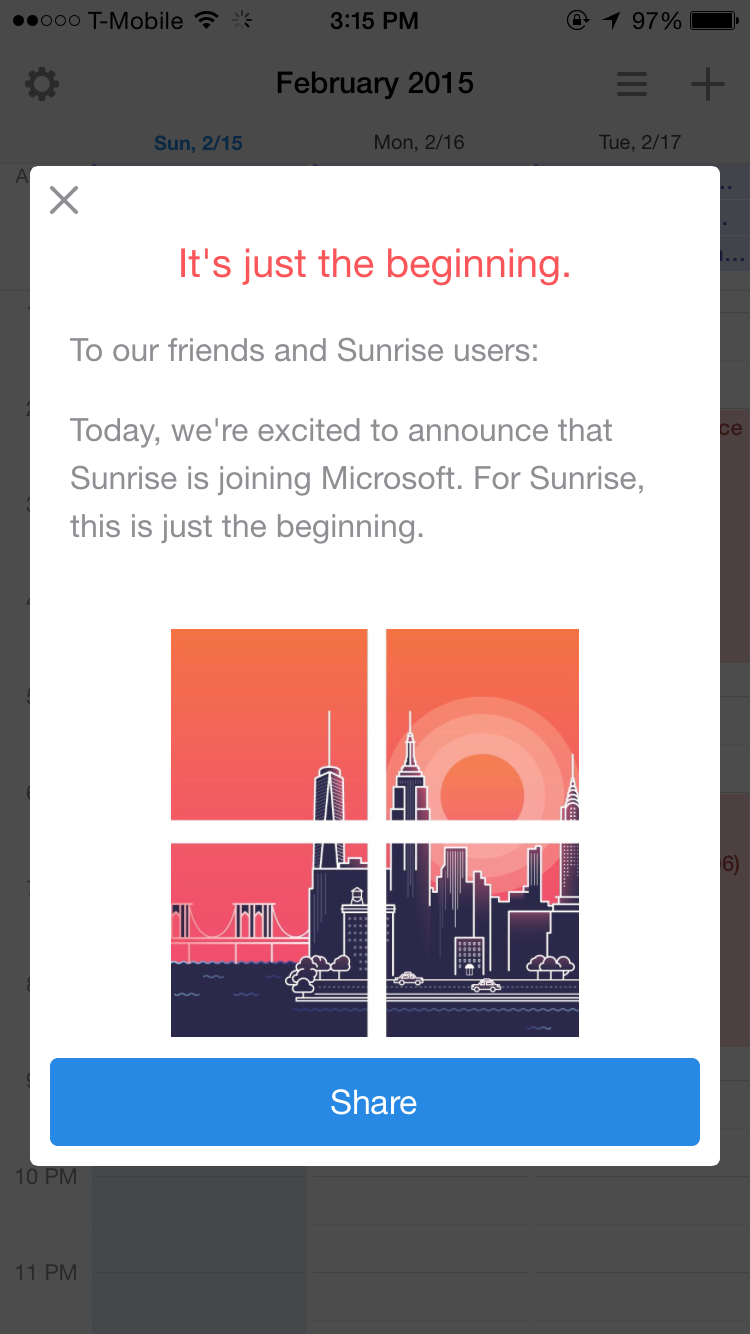
Screenshot of message from within the Sunrise Calendar iOS app, explaining that Sunrise is joining Microsoft

Screenshot of Sunrise Calendar

If you’re a Sunrise Calendar user, then you may be surprised, as well as excited to learn that Sunrise Calendar has been acquired by Microsoft – something that I found out about via a recent Sunrise app update. After updating, there was a message displayed on the app, which, when tapped, brought up the message seen in the screenshot above, which reads:

It’s just the beginning.

To our friends and Sunrise users:

Today, we’re excited to announce that Sunrise is joining Microsoft. For Sunrise, this is just the beginning.

Microsoft also posted a blog post on their website, written by Rajesh Jha, Microsoft’s Corporate Vice President of Outlook and Office 365, which reads, in part:

I’m pleased to announce that Microsoft has acquired Sunrise, provider of a next-generation calendar app for iOS and Android. We are making this acquisition because we believe a reinvention in the way people use calendars on mobile devices is long overdue. Our goal is to better help people manage and make the most of their time in a mobile-first, cloud-first world.

This is another step forward on our journey to reinvent productivity and empower every person and organization to achieve more. Today’s acquisition of Sunrise, our recent acquisition of Acompli, and our new touch-optimized universal Office apps for Windows 10 all exemplify Microsoft’s ambition to rethink the productivity category. Our goal is to create more meaningful, beautiful experiences in mobile email and calendaring across all platforms. And as you will hear in the video below, the creative talent and fresh thinking at Sunrise and Acompli will make a lasting impact on the Microsoft family as we seek to reinvent productivity.

With Sunrise now backed by Microsoft’s technical and monetary resources, as well as existing software, such as Microsoft Outlook, Office, Office 365, and others, it will be interesting to see how Sunrise will be integrated into the various Microsoft products, as well as how it will be developed further as a standalone app and website.

What are your thoughts on Microsoft’s acquisition of Sunrise Calendar? Are you a user of either the Sunrise Calendar iOS and/or Android apps or the Sunrise.am website application? Please feel free to post your thoughts, comments, and feedback in the “Comments” section below!

Using Your iPhone to Track Steps

Have you ever wondered how many steps you’ve taken or how active you’ve been throughout the day, but don’t have a pedometer or fitness tracker, like the Fitbit, to track and record this data? If you happen to be running iOS 8 on an iPhone 4s or later or on an iPod Touch 5th generation or later, you can easily track your steps, distance, and other interesting and useful health data, right from your iOS device using the built-in Health app.

Introduced in iOS 8, the Health app enables users to keep track of their health and fitness data, which can be either manually entered or pulled in from other apps, like MyFitnessPal, via Apple’s HealthKit tool. Users can then view this data from with the Health app, with the option to choose which information gets displayed on their Dashboard within the app.

For those users who carry their iPhone in their pocket throughout the day, they can use the Health app to track and view data on how many steps they’ve taken, something that one would have to use either a third-party app or fitness tracker for in previous versions of iOS. Users can also view data on how much distance they’ve walked or ran, as well as what the equivalent number of floors climbed would have been.

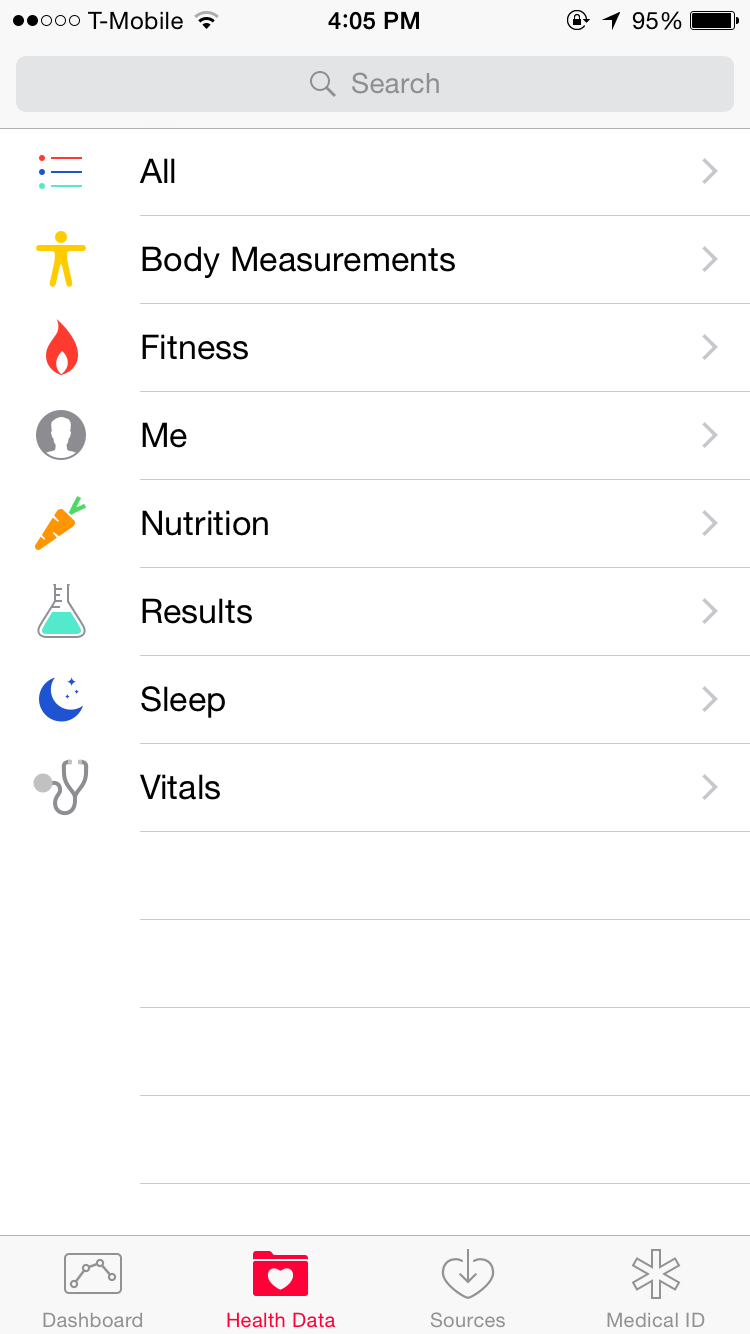
In order to view how many steps you’ve taken, you can do so by launching the Health app, where you should see buttons on the bottom of the screen, including “Dashboard”, “Health Data”, “Sources”, and “Medical ID”.

Tapping on the “Health Data” button will bring you to a list that contains various categories of health data that you can view and edit, from vital signs, to nutrition, to fitness.

The Health Data section of Apple's Health app

The Health Data section of Apple’s Health app

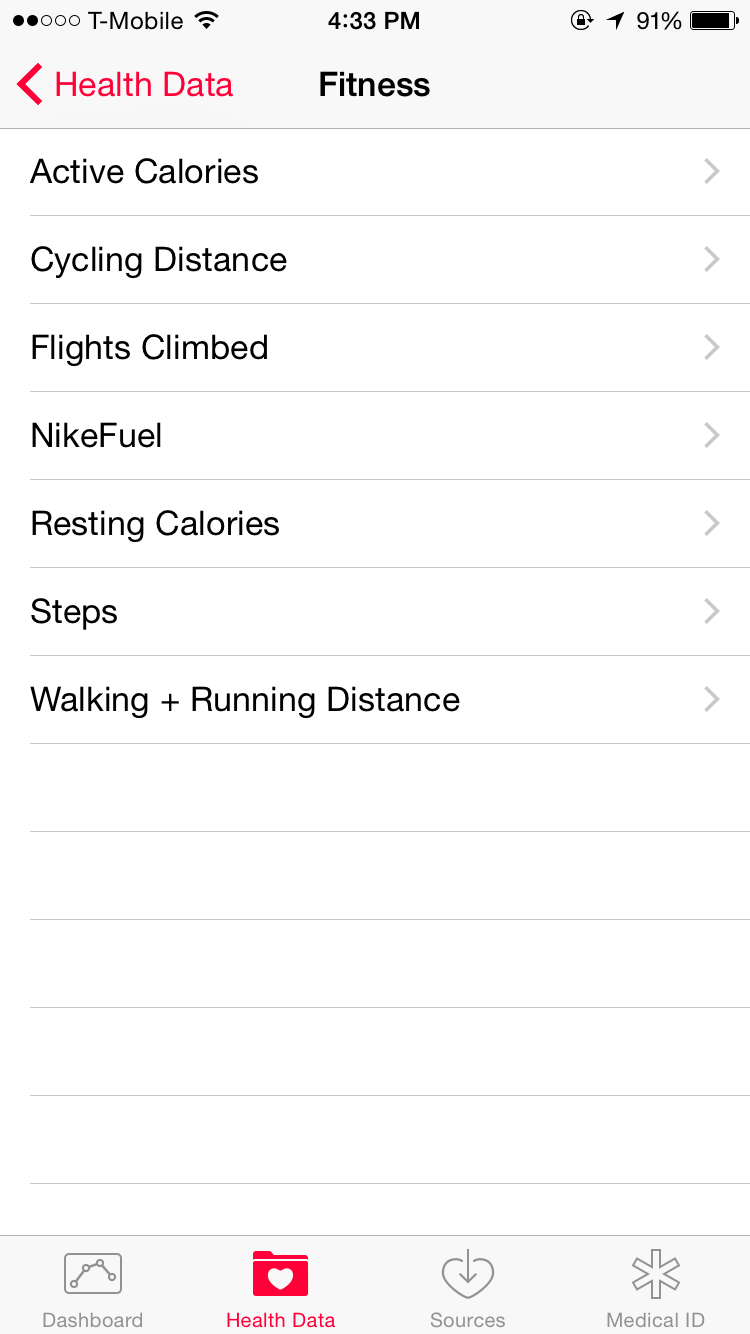
From the “Health Data” menu, you can tap on “Fitness”, which will give you the option to view various kinds of fitness data, including “Active Calories”, “Cycling Distance”, “Flights Climbed”, “NikeFuel”, “Resting Calories”, “Steps”, and “Walking + Running Distance”.

The iOS Health App's "Fitness" Categories

The iOS Health App’s “Fitness” Categories

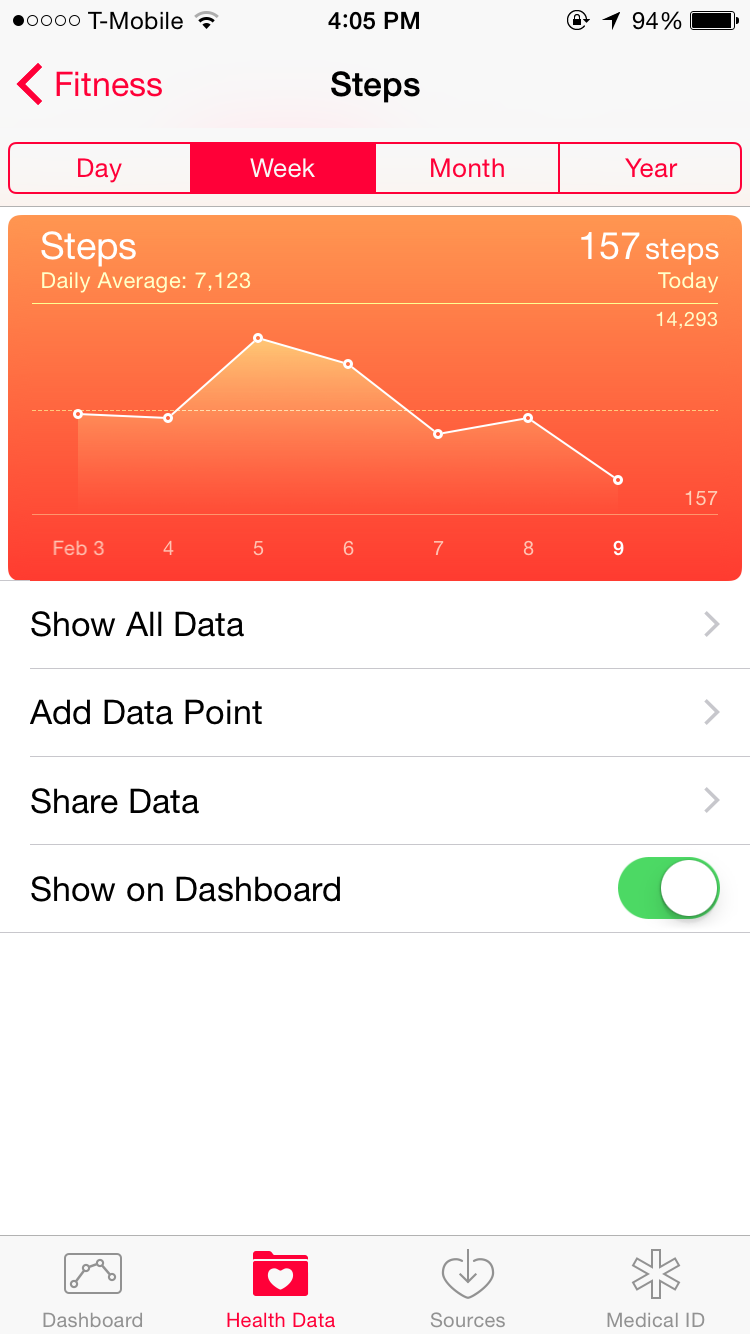
When you choose the “Steps” option, you should see a screen detailing the number of steps that you’ve taken over a time period of days, weeks, months, or the year, with the data in both numerical and graph form, allowing you to view the number of steps you’ve taken over the selected period of time.

Step data seen within the Health app on iOS 8

Step data seen within the Health app on iOS 8

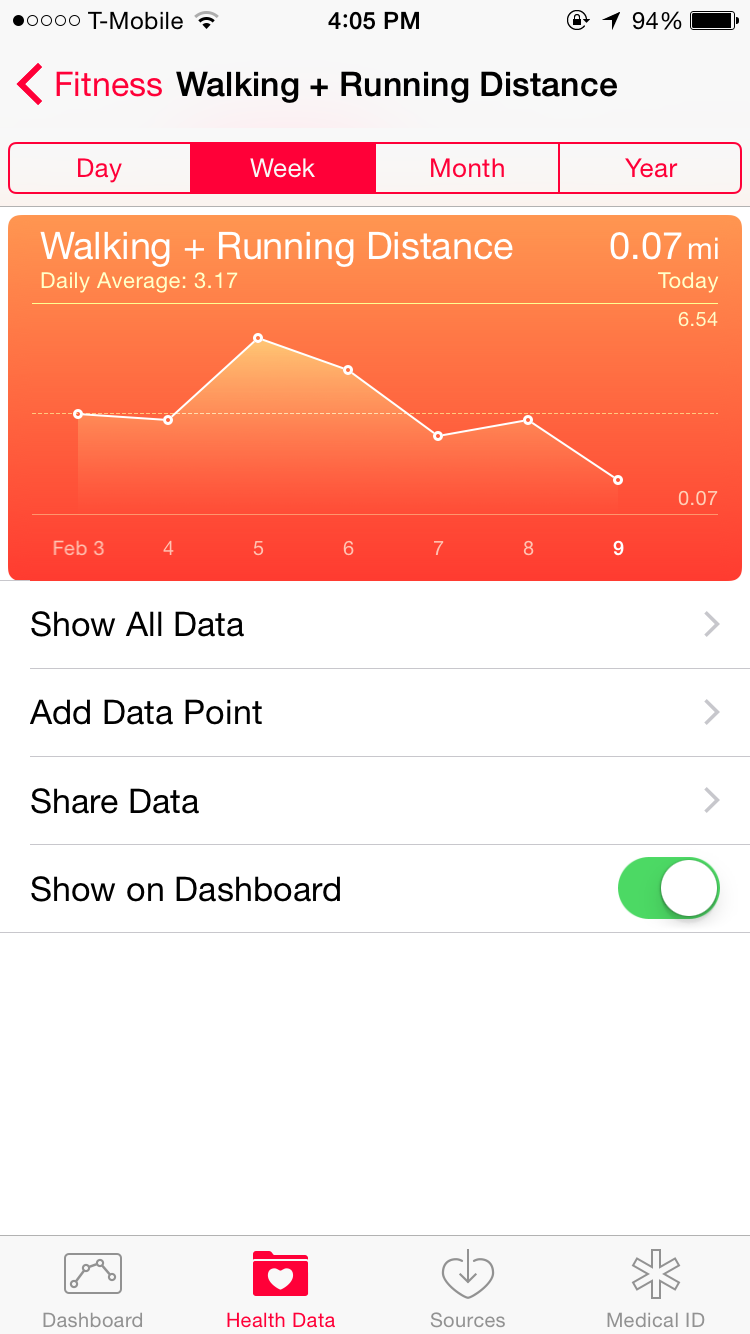
In order to view the distance you’ve walked or ran, you can select the “Walking + Running Distance” option from the “Fitness” menu, where you can view both numerical and graphical data in the same time-frames as the “Steps” option.

Health App's "Distance" Screen

Distance data seen within the Health app on iOS 8

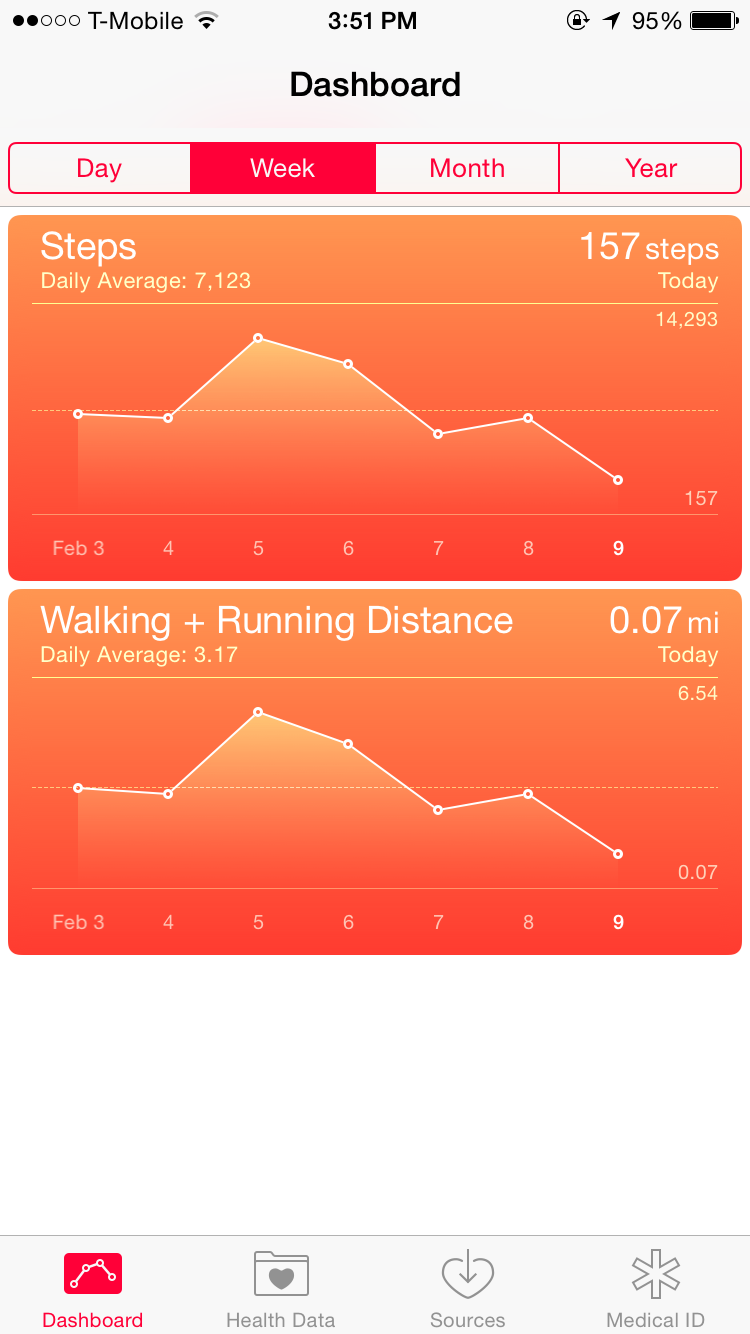
In order to make it easier to view both step and distance data, you can use the “Show on Dashboard” slider to add the desired data to the Health app’s Dashboard – that way you don’t have to traverse through the menus and options each time you’d like to view your data.

Health App Dashboard, displaying data on the number of steps taken and the distance traveled

Health App Dashboard

Tapping on the data from the Dashboard will take you to the same data and options page that you arrive at when you do so by traversing through the “Health Data” categories.

For more information regarding Apple’s Health app and HealthKit for iOS, you can check out this page from Apple’s support website, which provides information on the Health app in general, as well as what other functions you have access to with the app.

Have you tried using Apple’s Health app on iOS 8 for keeping track of your daily steps, distance, or anything else? What have your experiences been like? Please feel free to let us know in the comments section below! Also, please feel free to check out the TechnicalCafe YouTube channel for more tech news, tips, tricks, and tutorials!

Favorite Apps 2014

Since 2014 is coming to a close in a less than an hour, it’s time once again for the TechnicalCafe.com “Favorite Apps” list – a list of apps that I have been using or have used throughout the past year that I have found helpful, well-designed, useful, intuitive, or simply a great way to pass time and enjoy using frequently.

Below is a list of 10 apps that were chosen (by browsing through my iPhone) that is not in any particular order, so an app’s position in the list does not reflect how “good” it is, etc. Also, there are some runners up this year, which are apps that I used and enjoyed, as well, that did not make it into the “favorite apps” top 10 list.

1. MyFitnessPal (Free, Android)

MyFitnessPal Meal ListingMyFitnessPal Chart

MyFitnessPal is a service that is offered through both an app and website, that enables users to keep track of various health and fitness related data, including food intake, exercise, weight, and more, with the goal of helping to keep users health and in shape.

Users can search for various food items from a database containing a variety of different foods by either typing the name of the food item or by scanning the barcode with the app. Should an item not come up or should a user want to enter a custom food item, they are also able to do so from within the app.

Another great feature of the MyFitnessPal app is that users who have wearable fitness items, such as the Fitbit, are able to connect their exercise information to the app, in order to see how many calories were burned, taking the data right from their wearable pedometer, etc. – something that can be useful if one is interested in finding out their net calorie intake, calories burned, in addition to other health data.

2. TweetBot 3 ($2.99)

Photo Dec 28, 12 34 41 AM

TweetBot 3 is an app that was on the list last year, and for good reason – it is a great way to view, post, and manage tweets, and also has support for multiple Twitter accounts. Supporting a variety of touch gestures, such as swiping to view a conversation, etc., as well as the ability to customize the menu, one can easily view tweets, manage conversations, interact with followers, and more! These features, and others not mentioned here, are what make TweetBot 3 worth the $2.99 price tag!

3. Alien Blue (Free, Pro Upgrade In-App Purchase Available)

Photo Dec 28, 12 33 33 AM Photo Dec 28, 12 33 39 AM

As someone who has become a frequent Reddit.com user, I discovered the Alien Blue app for Reddit this year, and have been using it frequently ever since! Purchased by Reddit a few months ago, Alien Blue is a feature-packed app that lets users view and vote on new Reddit submissions, read and reply to comments, manage which subreddits one is subscribed to, and more! There is also a paid “pro” version of the Alien Blue app, which provides more features and helps to support the development of the app!

There is also an iPad version of Alien Blue, which provides a great way for users to access Reddit on their iPads, though there is no Android version of the app available at the time of this posting. However, if you are on iOS, I would recommend giving Alien Blue a try, especially if you’re already a Redditor!

4. iStudiez Pro ($2.99)

Photo Dec 28, 12 40 30 AM Photo Dec 28, 12 40 37 AM

For those readers who are in high school or college, the iStudiez Pro app may prove useful for keeping track of classes, homework, exams, and other school-related information and data.

5. Sunrise Calendar (Free, Android)

Photo Dec 28, 12 35 31 AM Photo Dec 28, 12 35 38 AM

Sunrise Calendar is a great calendar app that I use to keep track of my schedule, be it for school, work, or events that I wish to keep track of. With two interfaces – one that enables you to view a “schedule” of your upcoming events by day of the week, along with weather information, and another that shows you three days at at time and what events are scheduled during that day and how long they are scheduled.

Sunrise Calendar supports Google Calendar and Microsoft Exchange, and also has a web-based application, at Sunrise.am, which you can use to manage your calendar from any web browser.

6. Calendars 5 ($2.99)

Photo Dec 28, 12 35 53 AM

Calendars 5, by Readdle, is another calendar app that I use to keep track of my scheduled events and appointments, as well as what work I may have due, etc. Calendars 5 offers several views of your calendar, including a daily, weekly, and monthly view option. Also included and integrated within the app is the ability to view, create, and manage Google Tasks, helping to ensure that you get everything done in a timely manner.

7. Snapchat (Free, Android)

Snapchat is a free photo and video messaging app, with the catch that each photo and video that is sent only lasts for a certain amount of time, up to ten seconds, after which point it is no longer viewable by either user of the app. Users can send photos and videos to multiple users at a time, and can even post videos to all of their friends, in the form of a “Snapchat Story”, which remains visible to users for a 24 hour period.

8. Evernote (Free, Android | Premium Upgrade Available)

Photo Dec 28, 12 38 14 AM

Evernote is a free note taking and managing app, which I have used since I briefly switched from an iPhone to a Samsung Galaxy Note 3 earlier in the year. I like the ability to use the Evernote app on my phone and MacBook Pro, as well as the option to use the web interface, should I wish to view or edit my notes on a computer or device that does not have Evernote installed.

Evernote lets users upload photos, voice clips, and more, allowing for one to keep track of all sorts of things, such as receipts, business cards, and more. There is also a paid upgrade, to Evernote Premium, which includes the ability to upload more content to one’s account, in addition to other features.

9. Shazam (Free, $6.99 Upgrade, Android, $5.59)

Shazam is a useful app for when you are curious as to what song is playing or who may sing it. All you have to do is open the Shazam app, allow it to “listen” to the song for a few seconds, after which point it will send it to Shazam’s servers and analyze it, returning information about the song that you just tagged, including the song title, artist, links to purchase it from iTunes, etc., and more.

There is also a paid version of the Shazam app, called Shazam Encore, which can be purchased for $6.99 on an iOS device and $5.59 on an Android device, and enables more features and the ability to tag more songs.

10. Mint (Free, Android)

Photo Dec 28, 12 39 31 AM Photo Dec 28, 12 40 12 AM

Mint, owned by Intuit, is a free app and service that allows users to keep track of their money and finances, including spending, income, budgets, and more. With Mint, users can add multiple accounts, including checking, savings, credit cards, etc. and see where their money has been going, thanks to a variety of helpful metrics and graphs. Users can also create and view budgets, in order to see if they are overspending on certain areas and what not.

Runners Up:

The runners up this year include DataMan Next (free), Google Maps (free, iOS | Android), Waze (free, iOS | Android), Yik Yak (free, iOS | Android), and Duo Lingo (free, iOS | Android).

If you’re interested in what apps made the list in previous years, I invite you to check out the following links to see what apps were chosen in: 2013, 2011, and in 2010.

What were some of your favorite iPhone and Android apps this year? Would you have chosen different apps for the list? Please feel free to let us know what you think or what you may have done differently in this list by posting in the comments section below!

I hope everyone has a happy, healthy, fun, and safe New Year! Thank you for visiting the TechnicalCafe.com blog and TechnicalCafe YouTube channel, and for reading and viewing our content, as well as for taking the time to leave your feedback on the blog and videos; it’s greatly appreciated! Without the readers and viewers, TechnicalCafe would not be the website and channel that it is today!

Sunrise Calendar App Review

Keeping track of your schedule, important dates, and appointments can be tricky at times. However, if you are a Google Calendar, iCloud, or Microsoft Exchange user, Sunrise Calendar, available for iOS and Android devices, is an app that allows users to keep track of their calendars and schedules on the go!

When you first launch the Sunrise Calendar application on your phone, you will be prompted to sign in Google Account, iCloud, or Exchange details, in order to sync your calendar with Sunrise.

After the syncing process, you will be able to log into any of the Sunrise Calendar apps and view, create, and edit new events and tasks, which will be synced between your calendar and the Sunrise Calendar applications, including the web-based application and the Mac OS X application.

Whenever the Sunrise Calendar app is launched, users will see their calendar in one of two views – a “list” view, which displays various days and the events that are scheduled for them or a more traditional weekly calendar view, with events taking up time-slots within a specific day, similar to what one would see in Google Calendar’s “Weekly” view.

Users can switch between the two different views by tapping on the icon that looks like three lines, located to the right of the Sunrise Calendar logo, at the top of the application.

Sunrise Calendar List View

Sunrise Calendar’s List View

Within the “List” view of a user’s calendar, the day of the week, events, and weather will be displayed. Users will also be able to view and select a particular day within two weeks of the currently selected day. Scrolling up and down will change the currently selected day, and is an easy way to view what events may have previously occurred and which events are upcoming.

Sunrise Calendar's Weekly View

Sunrise Calendar’s Weekly View

Sunrise Calendar’s weekly view is similar to that offered by other calendar apps, such as Google Calendar and the Calendar application on iOS and Mac OS X, in that it displays the day of the week and shows the events, time they begin and end, and duration of them as blocks on a grid. All day events, such as birthdays and anniversaries, will show up at the top of the particular day’s grid and timed events will show up throughout the day.

New events can be added to a calendar by tapping on the “+” at top right of the app, which will launch the “New Event” pane, where various aspects of the event can be configured, such as the event’s name or title, date, time and duration, and location.

Screenshot of adding a new event in Sunrise Calendar

Adding A New Event

The “New Event” pane also enables users to set a location for the event, invite others, set which calendar the event will be on (if there is more than one), set an alert time (which will make an audible sound at the chosen time), and add a description of the event to their calendar.

When setting a time and duration for the event, users can either manually enter or select the start and end times or alternatively tap and drag the event within the day’s grid to select when the event beings and ends, in a way similar to that of Google Calendar.

Setting an event's start time in Sunrise Calendar

Setting an event’s start time in Sunrise Calendar

Should you wish to delete an event, all you have to do is tap on the event in either the list or weekly calendar view, which will bring up the event’s information, tap on “Edit”, and then scroll to the bottom of the event and choose “Delete”.

Being a Google Calendar user, I have used the Sunrise Calendar app for a while and really like being able to access my calendar quickly and easily. The app is easy to use and does not have a large learning curve, like some of the more advanced calendar apps that are available.

I like being able to see both a list of upcoming events and a calendar-like view so that I can get a visual sense of how long an event is and what time it begins or ends. Though Sunrise Calendar does not feature screen rotation, it displays a few days worth of events in both view modes, with the ability to scroll to see more. It would be nice to see a monthly calendar view with the ability to select an individual day in the past or future, but the app still works well and gets the job done.

Overall, if you’re looking for a new calendar app that is simple to use and offers a variety of great features, you should definitely consider trying Sunrise Calendar for iOS or Android, which is available from Apple’s App Store or the Google Play Store for free.

Sunrise also has a free web-based version, as well as an app for Mac OS X, both of which are pretty similar and provide a convenient way to view and edit your calendars while you’re on the computer.

Have you used Sunrise Calendar? Please feel free to leave a comment below with any questions, thoughts, or opinions you may have! Also, if you’re interested in tech related videos, please feel free to head on over to the TechnicalCafe YouTube channel!